Table of Contents
- Quick Overview: Samsung Galaxy at a Glance
- Introduction
- Understanding the Samsung Galaxy Lineup
- Core Technologies and Key Features
- Step-by-Step Buying Guide
- Side-by-Side Model Comparison
- The Samsung Ecosystem and Productivity Features
- Pro Tips for Samsung Galaxy Power Users
- Common Mistakes to Avoid
- Best Practices for Long-Term Device Health
- Tools and Resources
- Related Topics for Further Reading
- External Authority References
- Key Takeaways
- Frequently Asked Questions
Quick Overview: Samsung Galaxy at a Glance
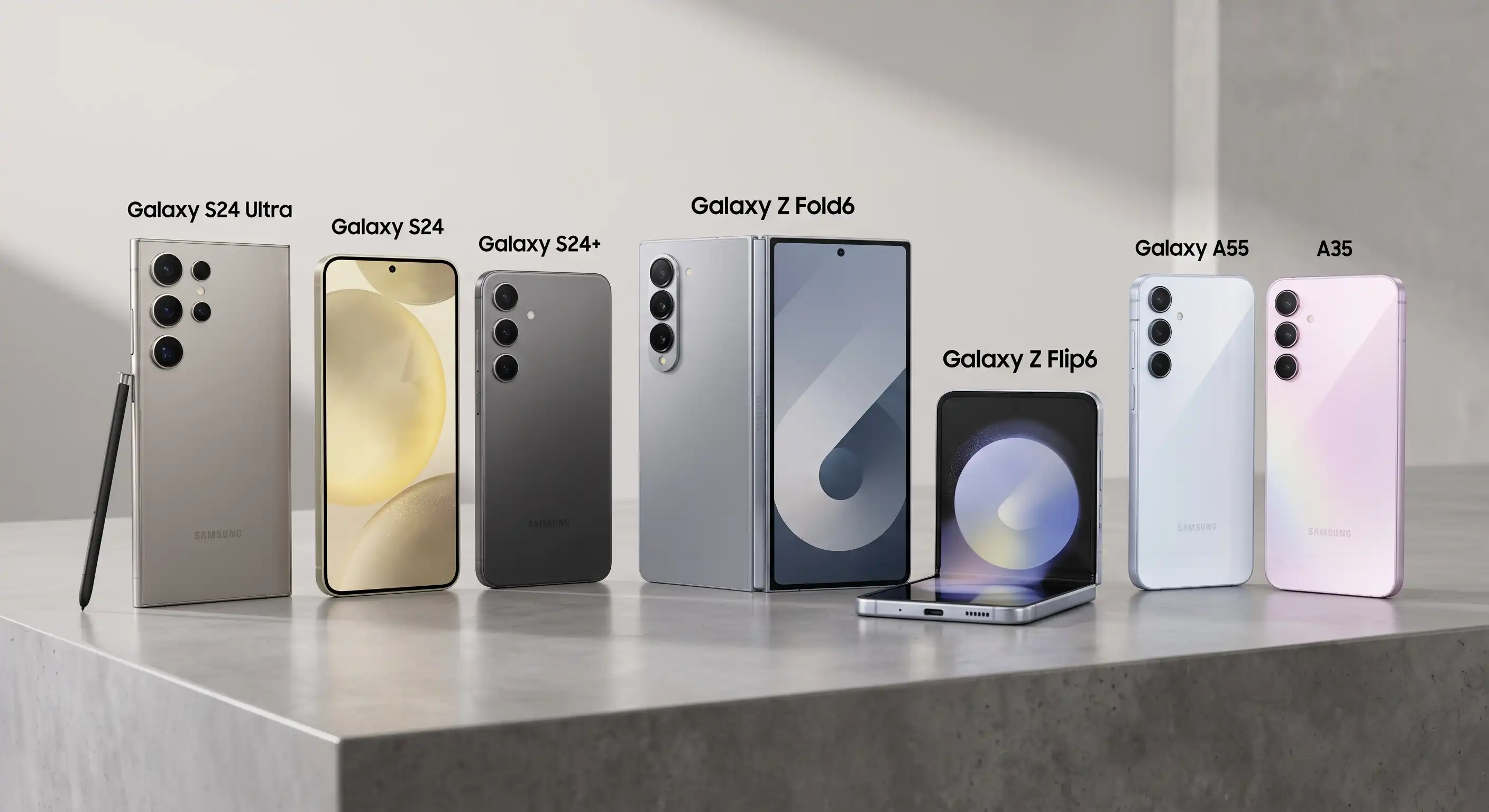
The Samsung Galaxy ecosystem spans three main tiers: the premium flagship Galaxy S series, the innovative foldable Galaxy Z series, and the value-focused Galaxy A series. Each series serves distinct user needs ranging from mobile photography and multitasking to everyday reliability on a budget.
Choosing the right Samsung Galaxy phone comes down to identifying your core priorities: display size, camera versatility, processor speed, and budget limits. Modern Galaxy devices feature industry-leading Dynamic AMOLED displays, robust Knox security, and continuous software support spanning up to seven years on recent flagships.Key Takeaways:
- Galaxy S Series: Best for top-tier camera performance, peak processing power, and long-term flagship software support.
- Galaxy Z Series: Ideal for power users wanting massive screen real estate (Fold) or compact pocketability (Flip).
- Galaxy A Series: Essential choice for budget-conscious buyers seeking reliable battery life and solid displays without premium prices.
Introduction
Navigating the smartphone market can feel overwhelming due to the constant flood of new releases and technical jargon. Samsung remains one of the world’s most versatile phone manufacturers, offering options for virtually every budget and lifestyle.
Whether you want a portable camera rig, a folding tablet replacement, or a dependable phone for daily communication, the Galaxy brand has a tailored solution. This guide breaks down every tier, feature, and practical consideration to ensure you make an informed decision.
Understanding the Samsung Galaxy Lineup
Samsung categorizes its smartphones into distinct families. Knowing how these families differ helps narrow down your choices instantly.
Galaxy S Series: Premium Flagship Performance
The S series represents Samsung’s commitment to peak technological performance. These phones showcase the finest displays, most advanced camera hardware, and fastest mobile processors available each generation.
Within this tier, you will find base models designed for compact balance, Plus models offering larger screens and batteries, and Ultra models featuring embedded S Pens and optical zoom lenses.
Galaxy Z Series: Folding Innovation
The Z series focuses on flexible display innovation. It divides into two form factors: the Z Fold and the Z Flip.
The Galaxy Z Fold opens like a book to reveal a tablet-sized inner display, making it ideal for mobile productivity and side-by-side app multitasking. The Galaxy Z Flip folds vertically into a compact square, prioritizing portability and hands-free selfie capture using its outer cover screen.
Galaxy A Series: Balanced Mid-Range Value
The A series brings core flagship features down to accessible price points. Samsung emphasizes bright displays, large capacity batteries, and multi-lens cameras in these models.
While materials lean toward durable plastics rather than glass-and-armor aluminum, modern A-series devices provide more than enough performance for messaging, web browsing, and social media.
Galaxy M and F Series: High-Battery Essentials
In select regions, Samsung offers the M and F series. These lines focus aggressively on maximum battery capacity and cost efficiency, sold primarily through digital channels.
Core Technologies and Key Features
Samsung phones stand out from competitors due to several proprietary hardware and software technologies.
Display Innovation: Dynamic AMOLED 2X
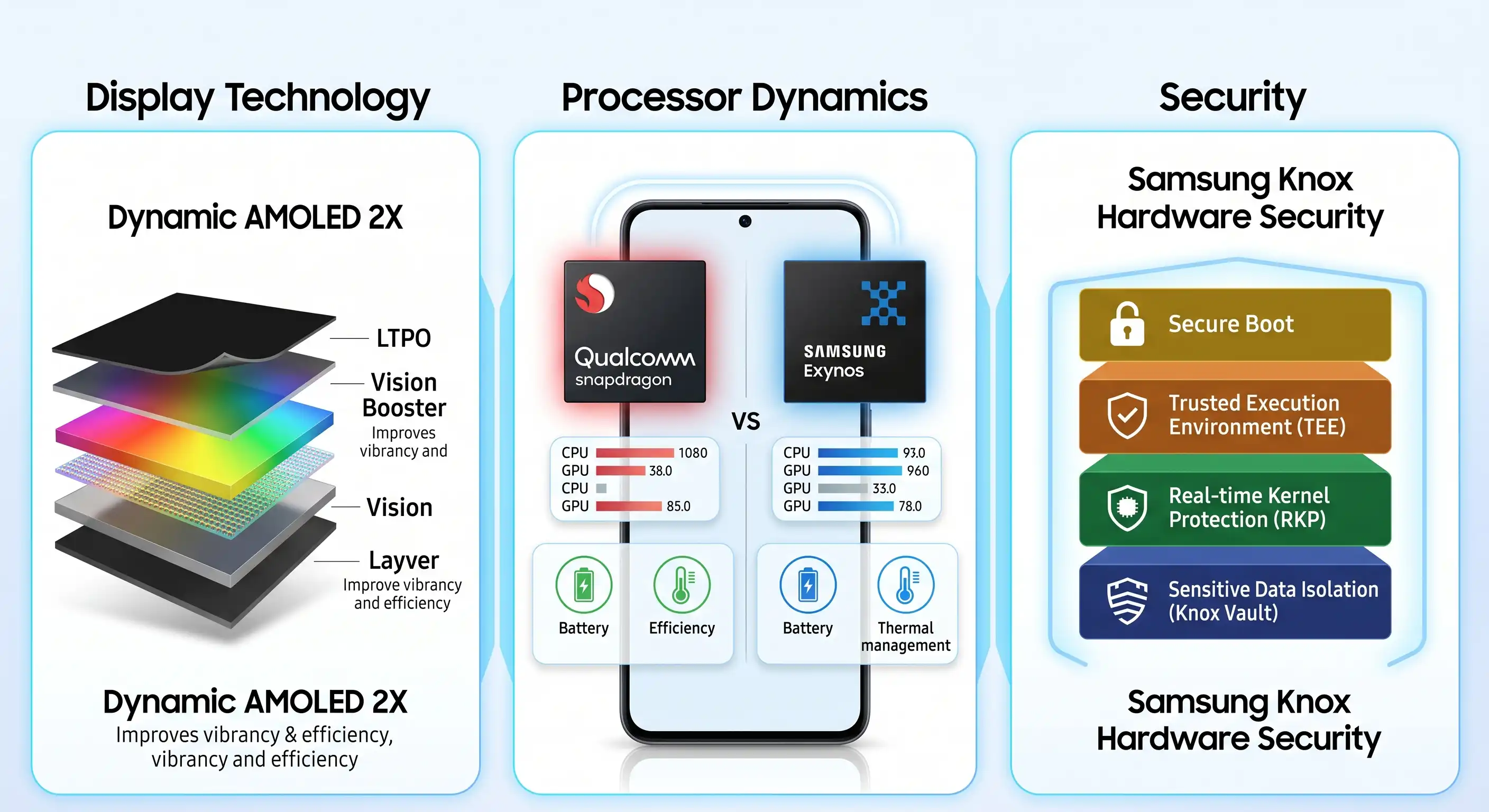
Samsung manufactures many of the world’s finest mobile panels. Dynamic AMOLED 2X screens deliver vibrant color accuracy, high contrast ratios, and adaptive refresh rates reaching 120Hz for fluid scrolling.
Features like Vision Booster enhance outdoor visibility by analyzing environmental lighting conditions and tone-mapping the image content directly on screen.
Processor Dynamics: Snapdragon vs. Exynos
Depending on your region and selected model, your Galaxy phone will feature either a Qualcomm Snapdragon or an in-house Samsung Exynos chipset. Flagship Snapdragon variants generally lead in graphic power and energy efficiency during heavy workloads.
Galaxy AI Integration
Modern Galaxy devices integrate native artificial intelligence capabilities directly into One UI. Features like Circle to Search allow instant visual lookups without changing apps.
Real-time voice translations during phone calls and generative photo editing tools further reduce daily friction for users.
Hardware-Level Protection: Samsung Knox
Security is baked directly into the hardware layer through Samsung Knox. Knox isolates confidential data like biometric passkeys and financial credentials into an isolated environment separate from standard storage.
Step-by-Step Buying Guide
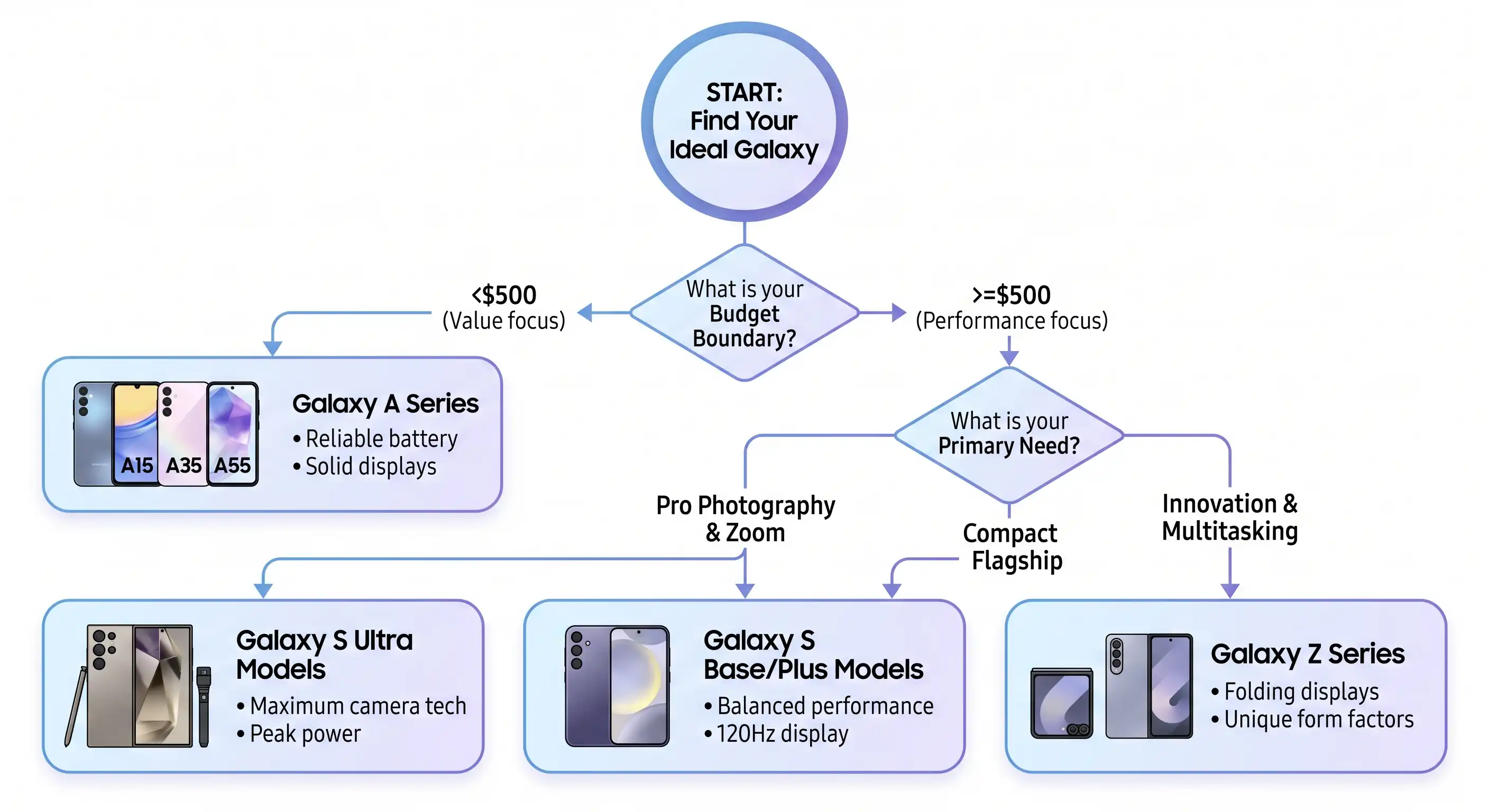
Follow these structured steps to identify the exact Galaxy phone matching your daily requirements.
Step 1: Define Your Budget Boundary
Determine your realistic spending limits before exploring specs. Flagship models range from $800 to over $1,800, whereas mid-range A-series devices cost between $200 and $500.
Step 2: Prioritize Form Factor and Screen Size
Decide if you prefer one-handed usability or maximum media consumption. Compact flagships offer screen sizes around 6.2 inches, while Ultra models and Folds expand past 6.8 inches.
Step 3: Evaluate Camera Requirements
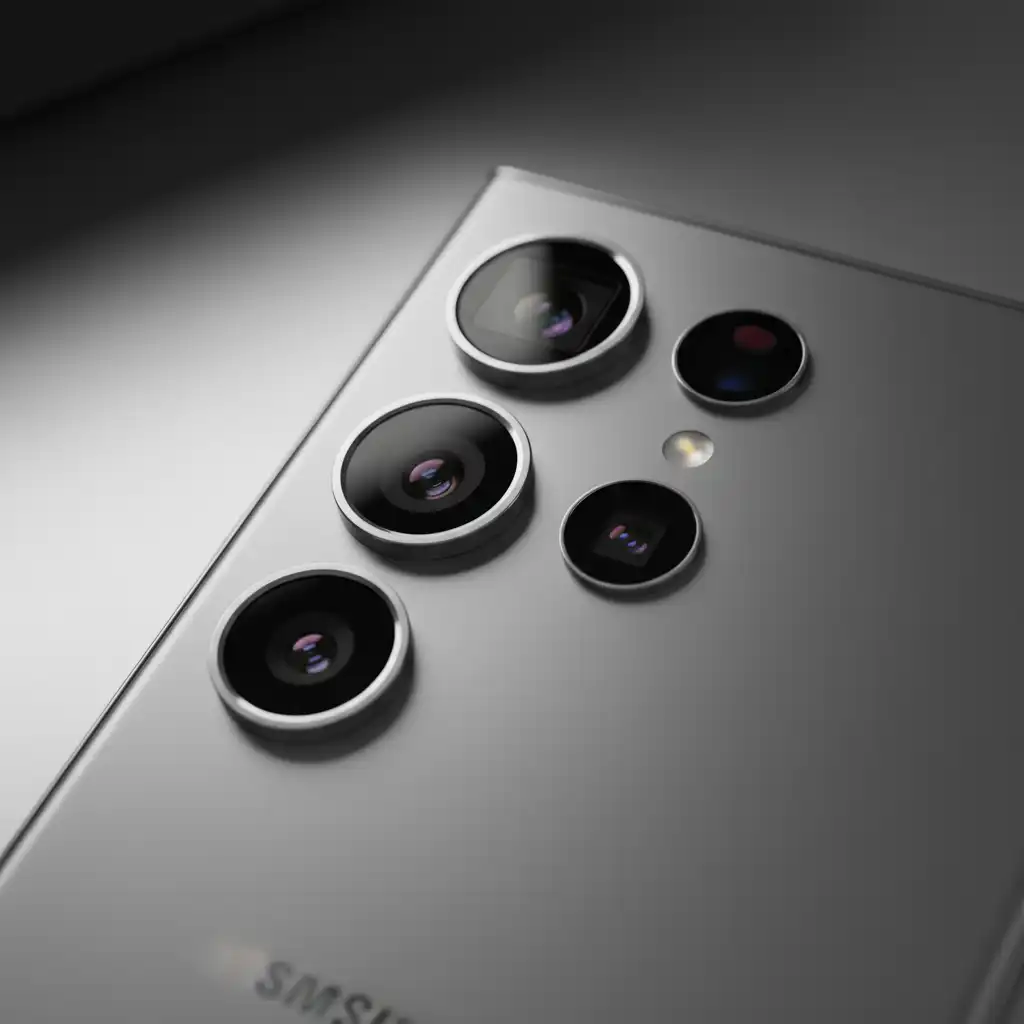
If photography is essential, prioritize S-series devices with dedicated telephoto zoom lenses. If casual family photos and social media posts are sufficient, the primary camera on an A-series phone will work reliably.
Step 4: Check Software Support Longevity
Current flagships offer up to seven generations of OS updates and security patches. Budget models typically receive three to four years of updates, which affects long-term resale value.
Step 5: Review Storage and Memory Configurations
Select at least 128GB of internal storage for standard daily use, or 256GB and above if you capture 4K videos or install large gaming files. Most modern Galaxy models no longer include expandable microSD card slots.
Side-by-Side Model Comparison
Compare the core specifications of current popular Samsung Galaxy devices to see how they stack up.
| Model | Series | Display Size | Primary Camera | Target User |
|---|---|---|---|---|
| Galaxy S24 Ultra | S Series | 6.8″ Flat QHD+ | 200 MP Main + 50 MP Zoom | Power users, photographers, productivity fans |
| Galaxy S24 | S Series | 6.2″ FHD+ | 50 MP Main | Buyers seeking a compact flagship |
| Galaxy Z Fold6 | Z Series | 7.6″ Inner / 6.3″ Outer | 50 MP Main | Heavy multitaskers and mobile professionals |
| Galaxy Z Flip6 | Z Series | 6.7″ Inner / 3.4″ Cover | 50 MP Main | Style-conscious users prioritizing portability |
| Galaxy A55 | A Series | 6.6″ FHD+ | 50 MP Main | Budget buyers who want solid mid-range specs |
The Samsung Ecosystem and Productivity Features
A major benefit of owning a Galaxy smartphone is seamless integration with surrounding software tools and accessory ecosystems.
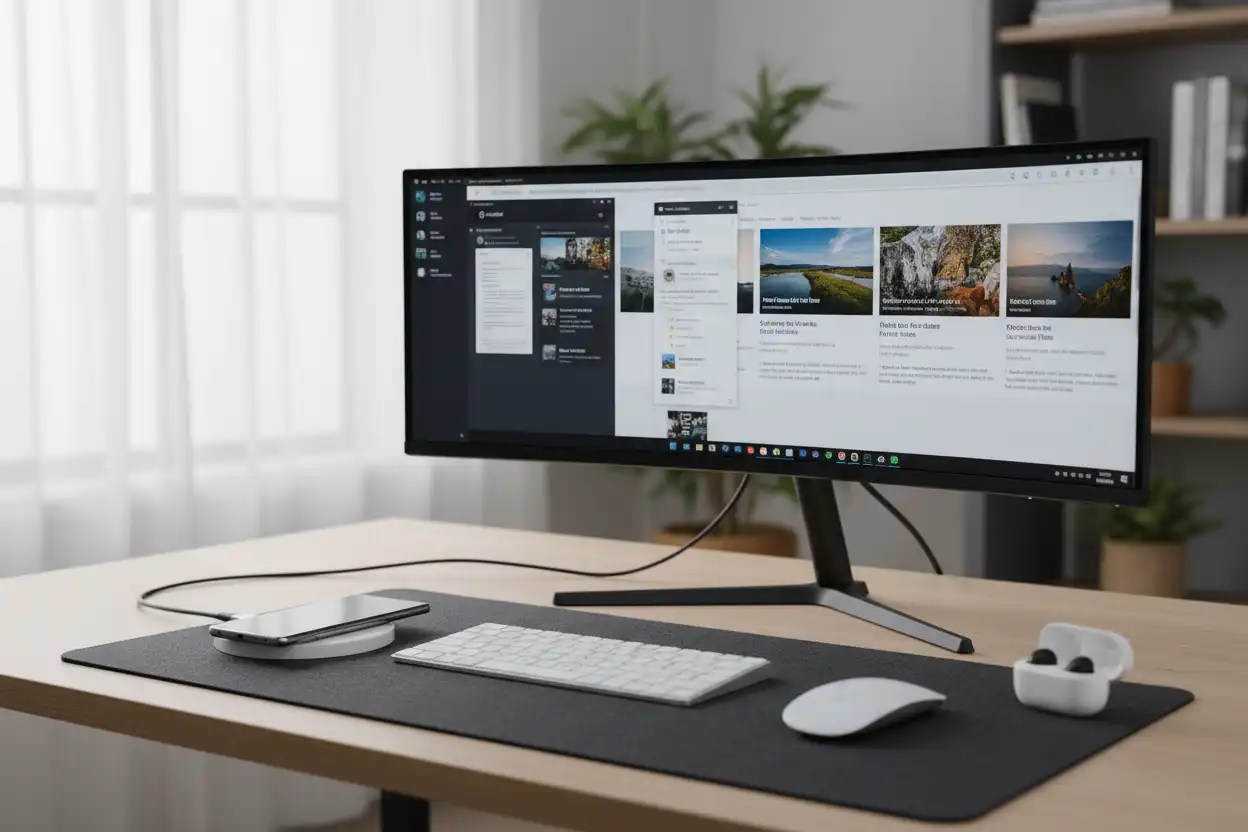
Samsung DeX: Turn Your Phone into a Desktop Computer
Samsung DeX converts your phone interface into a desktop environment when connected to a monitor or TV. You can launch multiple windowed applications, pair a bluetooth mouse and keyboard, and write long documents efficiently.
Smart Switch: Stress-Free Data Transfer
Upgrading to a new phone is simple with Smart Switch. The utility migrates photos, contacts, app preferences, and home screen layouts wirelessly from Android or iOS devices.
Connected Ecosystem Integrations
Pairing a Galaxy phone with Galaxy Buds and Galaxy Watch units grants features like auto-switching audio and health metric tracking. Galaxy Book laptops allow shared clipboards and instant file drag-and-drop actions.
Pro Tips for Samsung Galaxy Power Users
Maximize your hardware performance and personalize daily operations using these advanced software tips.
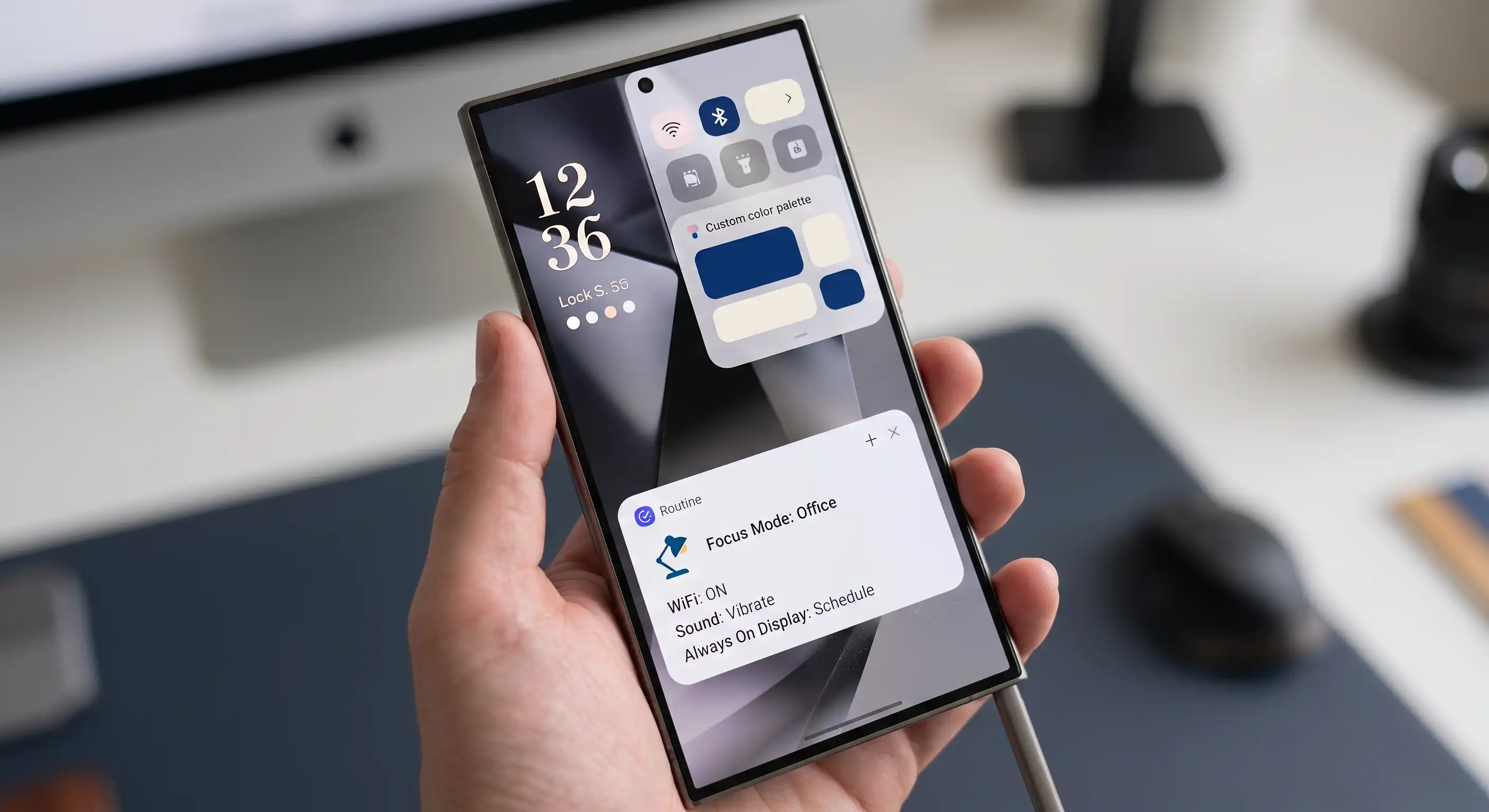
- Customize with Good Lock: Download the official Good Lock application from the Galaxy Store to modify status bar icons, lock screen layouts, and multitasking gestures beyond stock settings.
- Automate with Modes and Routines: Create automated rules based on your location or time of day. For example, instruct your device to mute notifications and enable power-saving mode automatically when you arrive at work.
- Fine-Tune Camera Assistant: Install Camera Assistant to customize shutter lag priorities, auto-lens switching behaviors, and video recording options inside the native camera app.
- Use Secure Folder: Create an encrypted workspace locked by biometrics to keep private applications, photos, and personal documents hidden from general view.
Common Mistakes to Avoid
Avoid these frequent oversights when buying or operating a Samsung Galaxy device.
1. Assuming standard fast chargers work at max speed: Samsung uses the USB Power Delivery (USB-PD) standard with Programmable Power Supply (PPS). Standard fast chargers without PPS will default to slower charging speeds on Galaxy devices.
2. Leaving RAM Plus on max settings unconditionally: Virtual RAM (RAM Plus) uses internal storage space as memory. On high-end devices with 12GB of physical RAM, keeping this feature set high can occasionally decrease performance slightly instead of boosting it.
3. Buying cheap screen protectors for ultrasonic fingerprint sensors: Galaxy S-series flagship phones feature ultrasonic under-display sensors. Thick glass protectors without clear adhesive compatibility will block fingerprint recognition entirely.
Best Practices for Long-Term Device Health
Keep your Galaxy phone operating smoothly for years by practicing proactive device maintenance.
Enable Battery Protection Modes
Lithium-ion batteries degrade faster when kept continuously at 100% capacity. Enable Battery Protection in your settings menu to limit maximum charging to 80% or 85% during overnight charging routines.
Schedule Auto-Restarts
Setting your phone to restart automatically once or twice a week clears background system caches and resets temporary processes. This maintains system responsiveness without requiring user intervention.
Manage Storage Proactively
Periodically clean out system trash and system caches using the native Device Care settings menu. Deleting unused apps prevents background processes from consuming system resources.
Tools and Resources
Use these software utilities and support channels to manage your Galaxy phone:
- Samsung Members App: Native diagnostics tool for running hardware checks on sensors, micro-speakers, and battery health.
- Smart Switch Desktop Suite: Windows and Mac software for performing full system backups to your desktop computer.
- Samsung Care+: Official protection plan option covering accidental damage drops, spills, and screen repairs.
Related Topics for Further Reading
Explore these complementary technical guides on our site to expand your knowledge:
- Android vs iOS: Complete Ecosystem Breakdown for Upgraders
- How to Calibrate Smartphone Cameras for Professional Mobile Photography
- Comprehensive Guide to Mobile Security and Data Privacy
- Understanding USB-PD PPS: How to Buy the Right Fast Charger
- Top Accessories for Maximizing Your Foldable Smartphone Experience
External Authority References
For official technical documentation and hardware specifications, consult these trusted resources:
- Official Manufacturer News and Technical Specs: Samsung Newsroom
- Official Android Platform Updates and Developer Documentation: Android Developers Guide
Key Takeaways
- Samsung Galaxy offers distinct lines (S, Z, and A series) catering to photography lovers, productivity fans, and value buyers.
- Flagship S-series models include up to seven years of software updates, high-end display panels, and versatile camera arrays.
- Battery care settings and correct charger choices significantly extend the physical lifespan and performance of your device.
- Built-in ecosystem tools like Samsung DeX and Smart Switch provide unmatched desktop versatility and hassle-free data transfers.
Conclusion
Selecting the right Samsung Galaxy phone comes down to aligning your daily habits with the right tier. S-series flagships remain the definitive standard for mobile performance, while foldable Z-series units open new doors for screen size and productivity. For practical daily users, the A series provides remarkable value without breaking the bank.
By assessing your primary needs—whether screen space, camera quality, or long-term battery health—you can choose a device that serves you reliably for years to come. Take time to evaluate your usage habits, pick your preferred model, and optimize it using the settings highlighted in this guide.
Frequently Asked Questions
What is the main difference between Samsung Galaxy S and A series?
The Galaxy S series represents Samsung’s high-end flagship category, featuring maximum processing speed, premium glass and metal builds, advanced telephoto cameras, and top-tier display technology. The Galaxy A series focuses on affordable mid-range devices, providing solid battery life and good displays while trimming cost on materials and secondary cameras.
How long do Samsung Galaxy phones receive software updates?
Recent Galaxy S-series and Z-series flagship devices receive up to seven years of Android OS upgrades and security patches. Mid-range Galaxy A-series models typically receive three to four generations of major OS upgrades along with four to five years of security maintenance, depending on the exact model release year.
Does my Samsung Galaxy phone come with a charger in the box?
Most modern Samsung Galaxy smartphones no longer include a charging brick in the retail packaging. The box includes a USB-C to USB-C cable. To reach maximum fast-charging speeds, you will need to purchase a USB Power Delivery (USB-PD) adapter that supports Programmable Power Supply (PPS).
Is the Samsung Galaxy S Ultra S Pen compatible with other models?
The S Pen included with S Ultra models operates specifically on screens designed with an integrated digitizer layer. It works on S Ultra models and select Galaxy Tab tablets, but it is not compatible with standard S series base models or A series displays. Foldable devices like the Z Fold require an S Pen Fold Edition designed with a soft spring-loaded tip.
How does Samsung Knox protect my data?
Samsung Knox is a multi-layered security platform built into the hardware level of Galaxy devices. It isolates sensitive information like biometrics, passwords, and cryptographic keys in a separate secure environment. This hardware isolation prevents malware, unauthorized access, and root-level tampering from compromising your private data.
Are Samsung Galaxy Z foldables durable for daily use?
Modern Z-series foldables feature official water resistance ratings, reinforced Armor Aluminum frames, and flexible ultra-thin glass displays. While they are engineered for daily long-term use, users should avoid pressuring the inner screen with sharp objects and keep devices away from fine sand, as dust resistance varies by model.